Live analytics
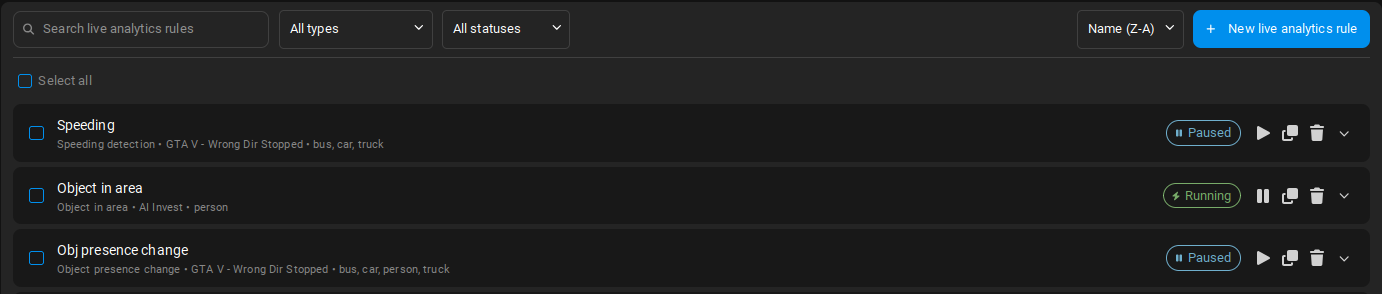
Live analytics are continuously running detection rules for live video streams. They analyze video in real time and create alarms when the configured event is detected.
Alarms can optionally be forwarded to external systems such as Genetec SC or Milestone XProtect. Unlike Free text search and Advanced search, Live analytics are intended for ongoing monitoring and immediate alerting.
There are two ways to create a Live analytics rule:
-
Convert an Advanced search to a Live analytics rule.
-
Create a new Live analytics rule from scratch.
It can be good practice to first run an Advanced search on past camera footage, then once you found the configuration producing the desired results, convert it to a Live analytics rule that you can use for ongoing monitoring.
Use Case availability
Some Use Cases are available only as Investigation and cannot run as Live analytics (for example, Traffic counting and Object count statistics).
-
Set up and run the Search in Investigation.
-
In the Search Results screen, click Convert to Live analytics rule.
-
Name your Rule, set up alarm integration if needed, and click Convert and start Live analytics.
-
The Rule now appears in Live analytics and starts producing alarms.
Creating and managing Live analytics requires the appropriate permissions. See Roles and permissions.
-
Click the New live analytics rule button at the top right of the Live analytics screen.
-
Select the Use Case and configure it as described in the Investigation guide.
-
In the last step, configure alarm-related settings:
- Alarm cooldown: The minimum amount of time that must pass between two detections before a new alarm can be triggered.
- Alarm integration: Select an integration target to forward alarms to external systems.
Alarm integrations are configured first in Settings Integration Targets.
-
Save and start the Rule.
-
Once the Rule is running, detections appear in the Alarms tab. If alarm integration is configured, an alarm is also triggered in the integrated system.