User management
ForensiQ provides a user management system that allows you to create and manage users, assign roles, and set permissions. This is useful for controlling access to the system and ensuring that only authorized users can perform certain actions.
Go to Users.
User groups
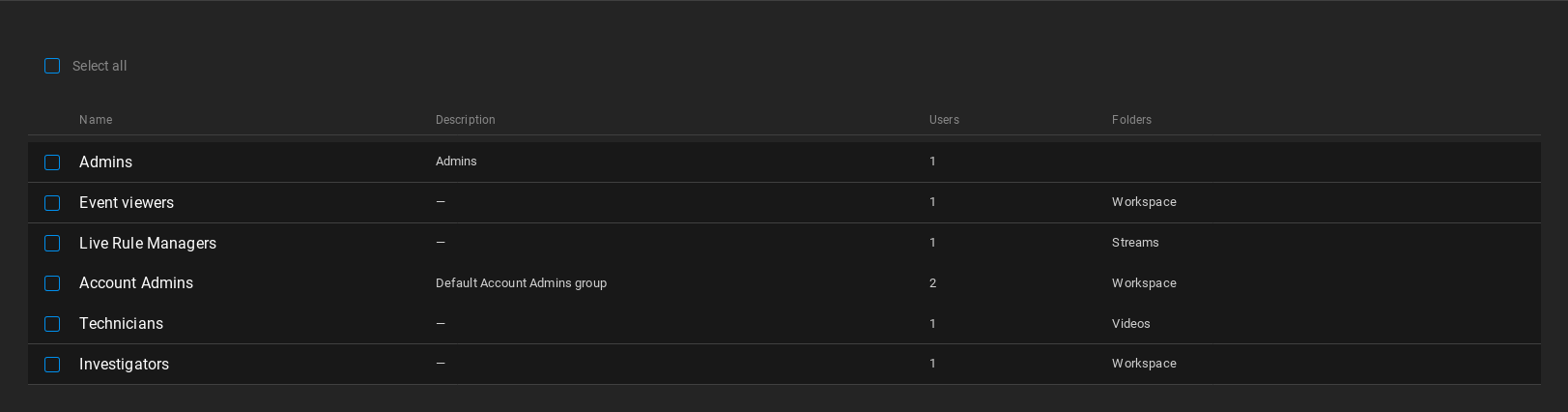
User groups are used to group users together and assign them the same permissions. This is useful for managing large numbers of users and ensuring that they have the same access to the system. User groups can be created and managed by the Administrator role.
-
Click the Add button in the User groups tab. This will open a form where you can enter the user's information, including their name, email address, and role.
-
Enter a name and description (optional) for the user group.
-
Select the permission level from the table to assign to the user group. You can select multiple permission levels for a single user group.
Read below for more information about permissions.
- Select the folder(s) accessible by the user group from the list.
Selecting the Workspace grants access to all folders.
- Click the dropdown menu to select the users to be added to the group. The user group determines the permissions that the user has in the system. A single user may belong to more than one group.
Click Save to create the group.
Roles and permissions
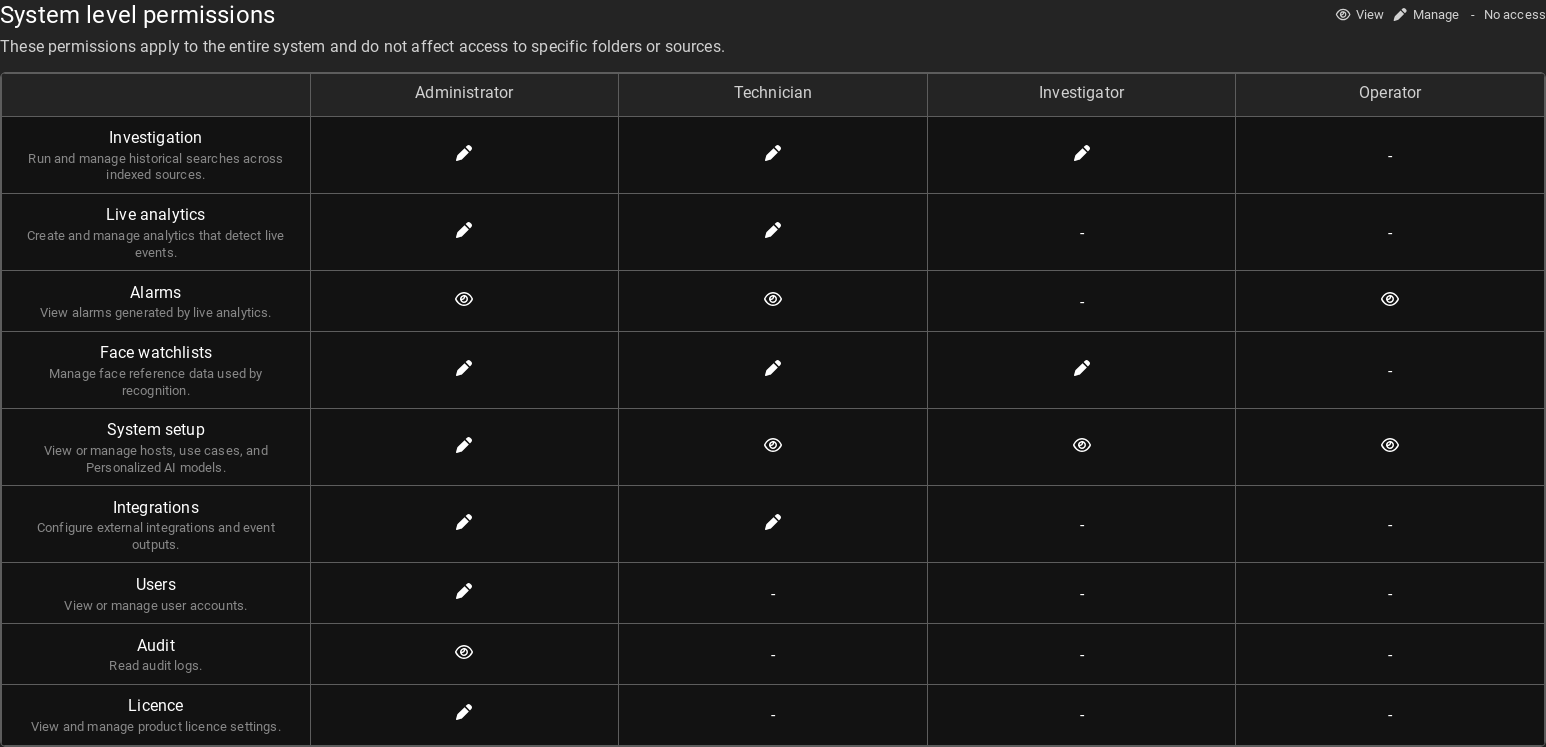
Roles are presets used to define the permissions that users have in the system. There are four predefined roles with different permissions:
The Administrator role can create and manage users and set permissions. It is able to upload Search Types and Classifiers, and has access to licence handling. It is unable to run Searches or register streams and videos. The Administrator role is typically assigned to system administrators or IT personnel.
The Technician role has access to running Searches and Live analytics rules, registering Face Watchlists, and viewing system settings. This role is typically assigned to security personnel or operators who need to monitor the system and respond to alarms.
The Investigator role has access to running Searches, registering Face Watchlists and viewing system settings.
The Operator role has read-only access to the system. This role can view live alarms but cannot make any changes to the system.
See the table above for a detailed overview of the permissions for each role.
Add user
Users are the individuals who have access to the system. Each user is assigned a role, which determines their permissions in the system. Users can be created and managed by a user with the Administrator role.
- Click the Add button in the Users tab. This will open a form where you can enter the user's information, including their name, email address, and role.
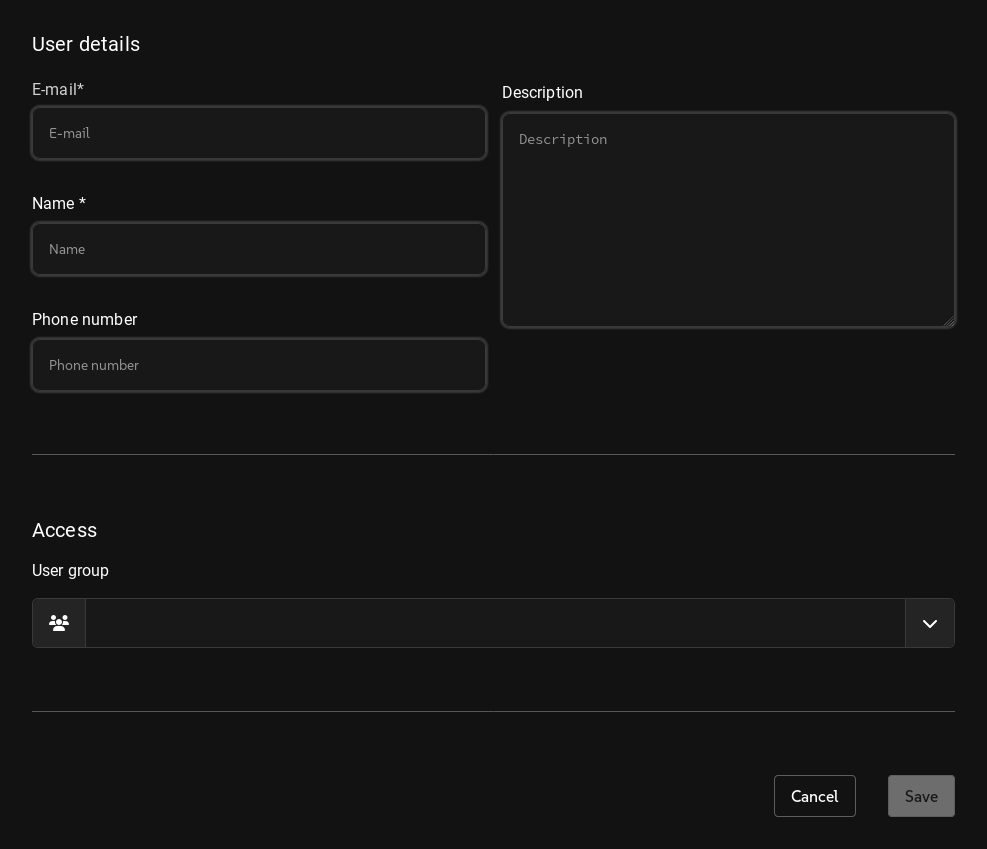
- Fill in the user details.
- E-mail: The email address of the user. This is used for sending notifications and alerts.
- Name: The name of the user. Used for identifying the user in the system. Automatically generated from the email address (otherwise changeable).
- Phone number (optional): The phone number of the user. This is used for sending notifications and alerts.
- Description (optional): A description of the user. This is used for identifying the user in the system.
- Click the dropdown menu to select the user group to which the user will belong. The user group determines the permissions that the user has in the system. A single user may belong to more than one group. The user group can be changed later.
Read below for more information about roles.
Click the Save button to create the user. This will also send an email to the user with a link to the login page. The user will not be able to log in to the system until they have activated their account.
Activate user
After creating a user, an email will be sent to the user with a link to the login page. The user will need to click the link and follow the instructions to activate their account.
-
Create a user as described above The user will receive an email with a link to the login page.
-
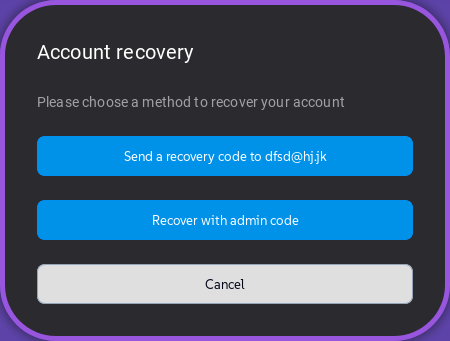
On the login page, the user should click Recover account and enter the email address you used to create the user.
-
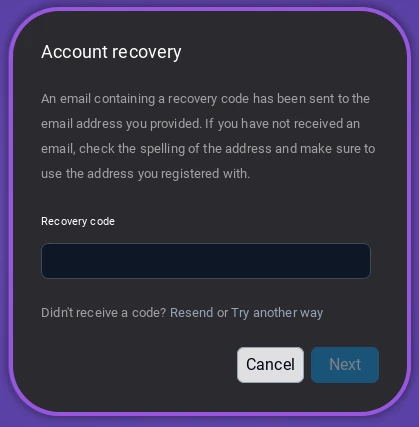
Click the Send recovery code button. The user will receive an email with a recovery code.
-
The user will receive an email with a recovery code. They should type the code into the field and click the Next button.
-
The user will then be prompted to enter a new password. After entering and confirming the new password, they can click the To sign in button to complete the process.
-
Create a user as described above. Select the user and click Reset password Generate recovery code to generate an admin code.
-
On the login page, the user should click Recover with admin code.
-
Send the admin code you previously generated to the user. The user should type the code into the field and click Next.
-
The user will then be prompted to enter a new password. After entering and confirming the new password, they can click the To sign in button to complete the process.
Editing a user
To edit a user, click their row in the Users tab. This will open the above form where you can change the user's information (except for their e-mail).
Ticking the checkbox next to a user will enable additional functions; click the Delete button to remove the user from the system or Suspend to disable them. The user will not be able to log in to the system until they are re-enabled here.
Note that modifying the permissions of the user currently logged in will take between 1-2 minutes to take effect.