Investigation

Investigation is the workspace for searching indexed video and reviewing events found in recorded footage or live streams. It is intended for historical analysis: searches are run against metadata that has already been extracted by the Indexer.
Investigation provides several ways to search:
- Free text search is the fastest way to find common objects and attributes using a natural-language prompt.
- Advanced search uses predefined Use Cases to search for events such as line crossings, loitering, near misses, face recognition, and counting.
- Saved Searches stores search configurations and results for later review, duplication, reporting, or conversion into a Live analytics rule.
Investigation searches do not produce real-time alarms - for continuous detection on live streams, convert them to Live analytics.
Advanced search
Advanced search allows you to search for complex events in your videos, such as Area occupancy, Line crossing, and more.
Advanced search can be used with both recorded videos and live RTSP streams. It does not produce real-time alarms - for real-time detection of events with optional alarm integration, use Live analytics.
Note that counting Use Cases, such as Traffic counting, are not available in Live analytics.
To set up an Advanced search, go to Investigation Advanced search and select the Use Case you want to run the Search for. To set up a real-time detection of the event with alarm integration, go to Live analytics New live analytics rule and select the Use Case you want to run the Search for.
Saved Searches
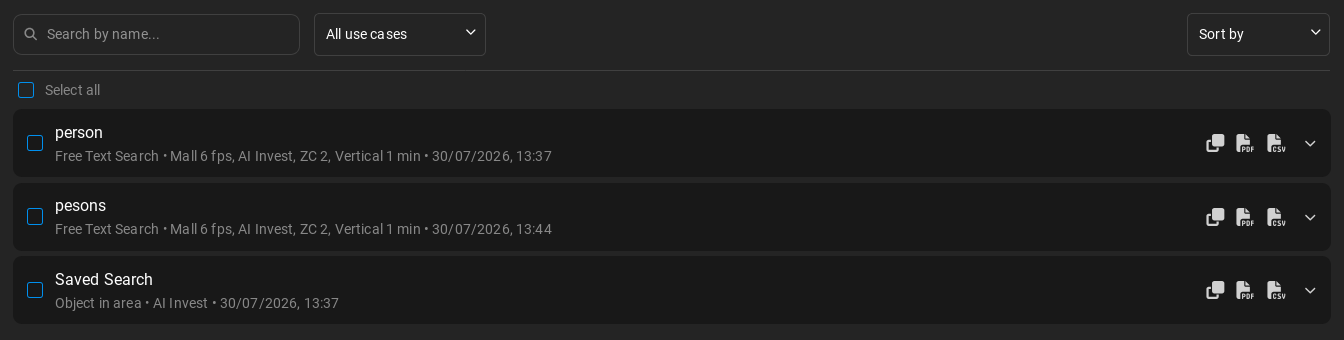
The detections produced by Free text search and Advanced search can be saved for future reference. They can be accessed from the to Investigation tab Saved Searches.
Select a saved Search to expand it and see its details and results.
To save a Search:
-
Set up the Search as desired in Advanced search and click Search.
-
In the Search Results screen, click the Save Search button at the top.

Saved searches can be managed by clicking the corresponding buttons on the right of each Search:
-
Duplicate: Create a copy of the Search with the same settings. This will open the copied Search in Advanced search where you can make adjustments to the settings and run it again.
-
Download report as PDF: Download a PDF report of the Search results, including snapshots of the detections.
-
Download report as CSV: Download a CSV file containing the metadata of the detections, such as the object type, confidence score, and timestamp of the detections.
To delete a saved Search, tick its checkbox and click the Delete button at the top. You can select multiple Searches to delete them in bulk.
Live rule conversion
It can be good practice to set up an Advanced search on a video footage first to test and fine-tune the settings before setting up a Live rule with the same Use Case.
You can convert an Advanced search into a Live rule by the following steps:
-
Set up the Search as desired in Advanced search and click Search.
-
In the Search results screen, click the Convert to Live analytics Rule button at the top.
-
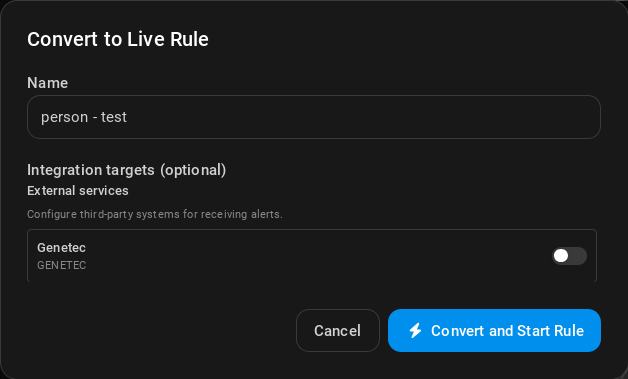
Name your Rule, set up an alarm integration if needed, and click Convert and start Rule.
-
Your Live rule will now appear in the Live analytics tab, and its detections will be displayed in the Alarms screen. If an alarm integration is set up, an alarm will also be triggered in the integrated system.