Cases
Cases group user-selected search results as evidence, making it easy to collect and organise relevant findings for further review or reporting.
Adding evidence to a Case
To create a Case, follow these steps:
-
Open the Cases tab from the top menu.
-
On the Workspace, or within a specific folder, click the button in the top right corner of the left sidebar select New Case.
-
Name your Case, add an optional description, and click Add.
Any event from a Search result as well as any Alarm can be added as evidence to a Case. To do so, follow these steps:
-
Free text search for the relevant events or alarms, using filters if needed.
-
Saved searches' results can be added from the Saved searches screen. Select a Search to expand it Click the :material-case: button on the result thumbnails to add them to a Case.
-
Alarms can also be added to Cases. Open Alarms Click on the alarm's thumbnail image to open its detailed view click the Add to Case button.
Reviewing cases
Cases can be accessed from the Cases tab at the top of the screen. To review a Case, simply click on its name in the list.
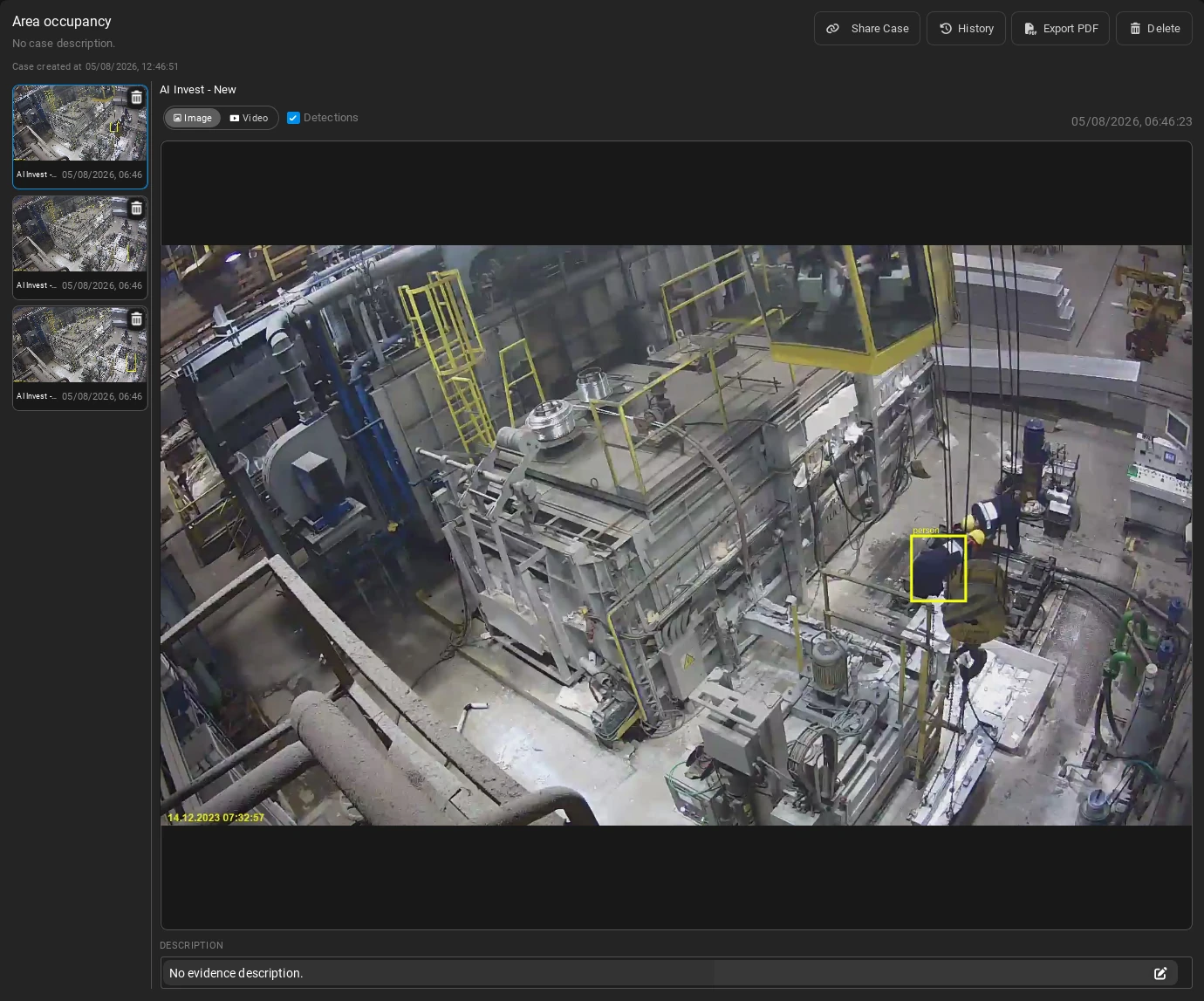
Added evidence will be displayed on the left side of the screen. Click on any evidence item to open it in the right pane where you can alternate between the image and video player views.
-
 Share Case: Copy the Case link to your clipboard, allowing you to share it with others who have access to the Workspace or folder the Case is in.
 -
History: View the Case's history, including when evidence was added and deleted, and by whom.
-
Export PDF: Download a PDF report of the Case, including screenshots and metadata of all its evidence.
-
Delete: Delete the Case. Note that this action is irreversible.