Reference
Analysis
ForensiQ provides a wide range of analysis capabilities, including video indexing, object detection, and classification. The analysis is performed on the video stream from cameras and videos added to the system.
Indexing parameters
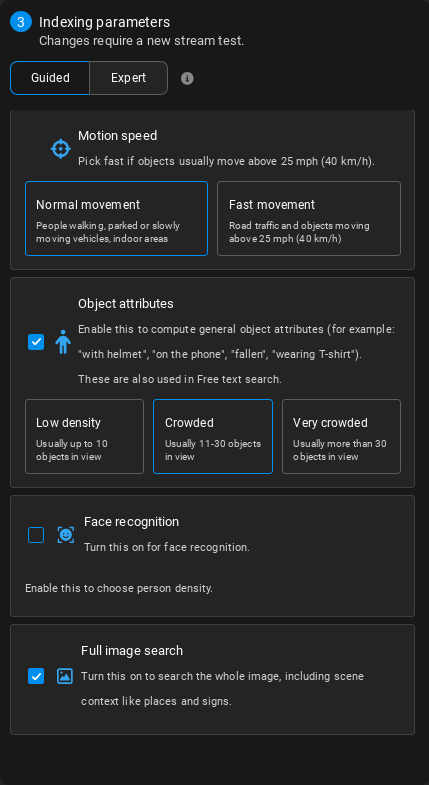
You can configure the indexing parameters for each camera or video added to the system. The parameters are divided into several sections, each with its own set of options.
Note that currently, it is not possible to edit indexing parameters after the camera has been added. If you need to change them, delete the camera and add it again with the new parameters.
Here you can set the parameters for indexing the video.
- Detector FPS (4 by default): The number of frames the detector will analyse per second.
Warning
The higher the FPS, the more frames the detector is able to analyse per second. Note, however, that this will also increase GPU usage. The default value of 4 FPS is a good compromise between accuracy and processing needs. Consult the hardware requirements for more information.
Enables the extraction of attributes from the video stream, for all object types (on by default).
- Vectors per frame (2 by default): The number of feature vectors depends on the number of objects in the video. In case of a scene with low / rare activity, leave it as default. As the number of objects increases, you may consider increasing the number of feature vectors so that no objects are missed.
Enables the extraction of face attributes from the video stream (off by default).
- Vectors per frame (2 by default): The desired number of feature vectors depends on the number of faces in the video: in case of a scene with low activity, leave it as default. As the number of faces increases, you may consider increasing the number of feature vectors so that no faces are missed.
Enables the extraction of attributes from the environment around classifiable objects (on by default). It is used for detecting changes in the background, such as movement or changes in lighting or environmental conditions.
- Vectors per frame (1 by default): The optimal number of analysed vectors depends on how likely it is for the background to change; if the background is expected to remain mostly static, leave it as default. If the background changes frequently or drastically (such as in drone footage or for a PTZ camera, where the environment continuously changes due to camera movement), set it to 2 or more, as more frequent calculations will be necessary.
Feature vectors
Feature vectors are quantifiable attributes extracted from video streams. They are used to identify objects in the video and can be used for various purposes, such as object tracking, classification, and recognition.
Object Types
ForensiQ supports a wide range of object types that can be classified and detected in video streams. These object types can be used in queries to filter detections and to create custom use cases.
Object types list
- airplane
- apple
- backpack
- banana
- baseball bat
- baseball glove
- bear
- bed
- bench
- bg
- bicycle
- bird
- boat
- book
- bottle
- bowl
- broccoli
- bus
- cake
- car
- carrot
- cat
- cell phone
- chair
- clock
- couch
- cow
- cup
- dining table
- dog
- donut
- elephant
- fire hydrant
- fork
- frisbee
- giraffe
- hair drier
- handbag
- horse
- hot dog
- keyboard
- kite
- knife
- laptop
- microwave
- motorcycle
- mouse
- orange
- oven
- parking meter
- person
- pizza
- potted plant
- refrigerator
- remote
- sandwich
- scissors
- sheep
- sink
- skateboard
- skis
- snowboard
- spoon
- sports ball
- stop sign
- suitcase
- surfboard
- teddy bear
- tennis racket
- tie
- toaster
- toilet
- toothbrush
- traffic light
- train
- truck
- tv
- umbrella
- vase
- wine glass
- zebra
Personalized AI classifiers
Personalized AI classifiers are used to filter objects by various attributes in videos. They can be used to, e.g., look for 'PPE helmet' for Person objects or 'Emergency Vehicle' for Car objects.
-
In the upper right corner of the web interface, click the button.
-
Click Personalized AI.
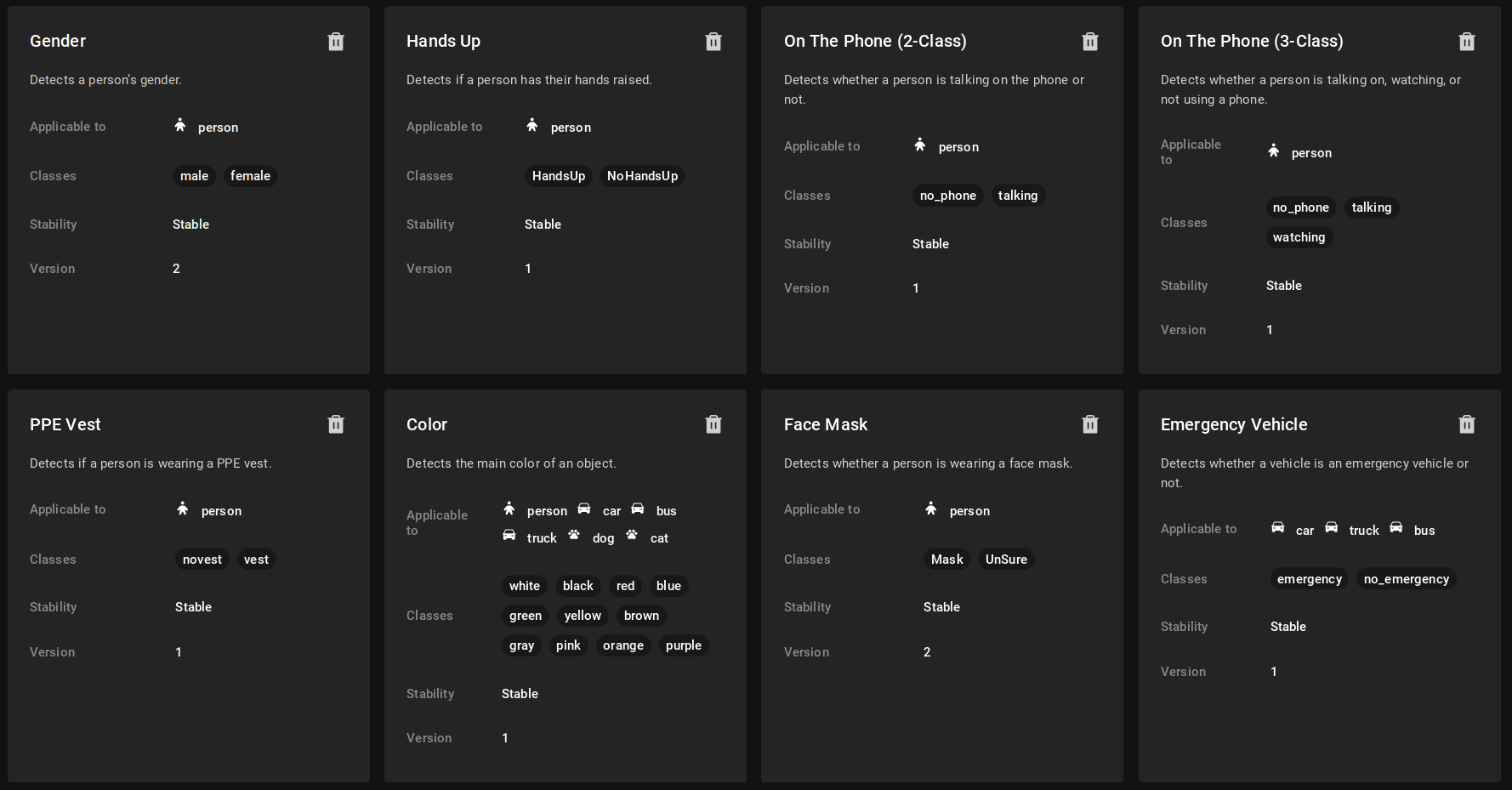
Personalized AI classifiers added to ForensiQ are listed here, along with their various properties. You can also upload new classifiers and delete existing ones.
- Click the + Upload Personalized AI button.
- Browse for and upload an
.fslfile using the upload interface.
Custom Classifiers
If your needs aren't met by the existing classifiers, feel free to contact us by opening a ticket. Custom classifiers can be developed, in binary format, that can integrate seamlessly with other systems, eliminating the need for a new software release.
| Classifier | Applicable Object Type | Classes |
|---|---|---|
| Gender | Person |
|
| Person on the phone | Person |
|
| Hands up | Person |
|
| Emergency vehicle | Car, Truck, Bus |
|
| PPE helmet | Person |
|
| PPE vest | Person |
|
| Person wearing a face mask | Person |
|
| Fallen person | Person | Fallen person |