Alarms
Live Rules produce alarms when a detection is made. Alarms can be continually monitored and reviewed in the Alarms tab at the top.
Live Rules only
Alarms are only produced by Live Rules. Detections produced by Free text search or Advanced Search can instead be saved and reviewed in Saved Searches.
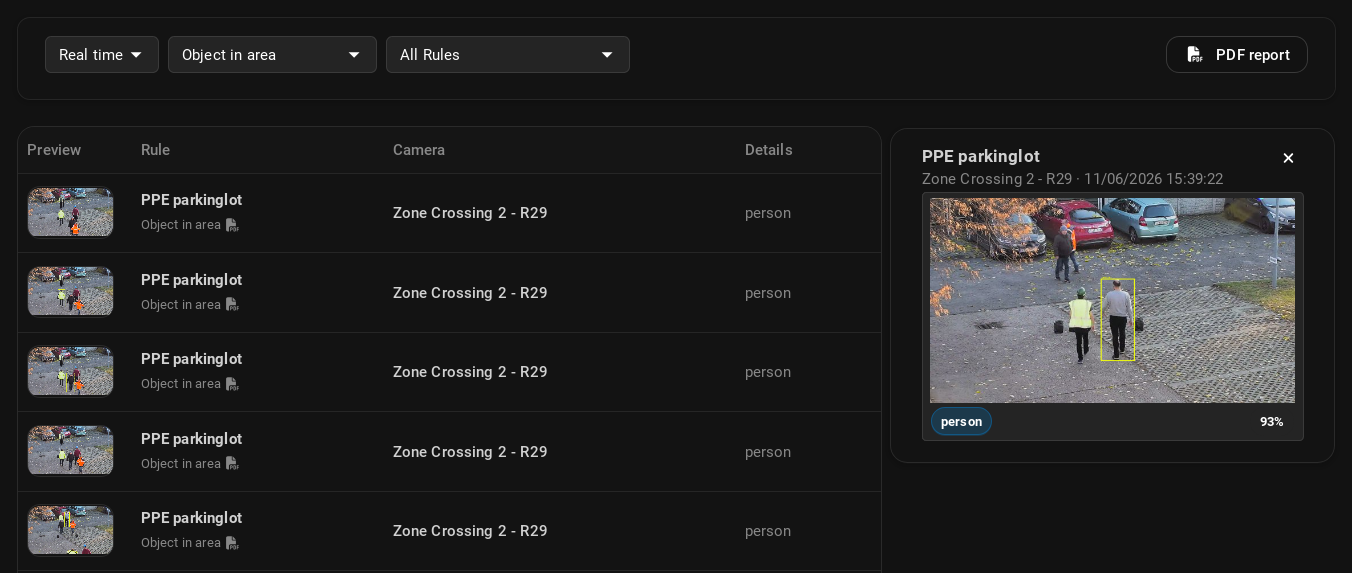
Clicking an alarm in the list opens its details on the right, including a snapshot of the detection. Clicking the snapshot opens a popup with a detailed view of the detection, including a video segment of the event and its metadata.
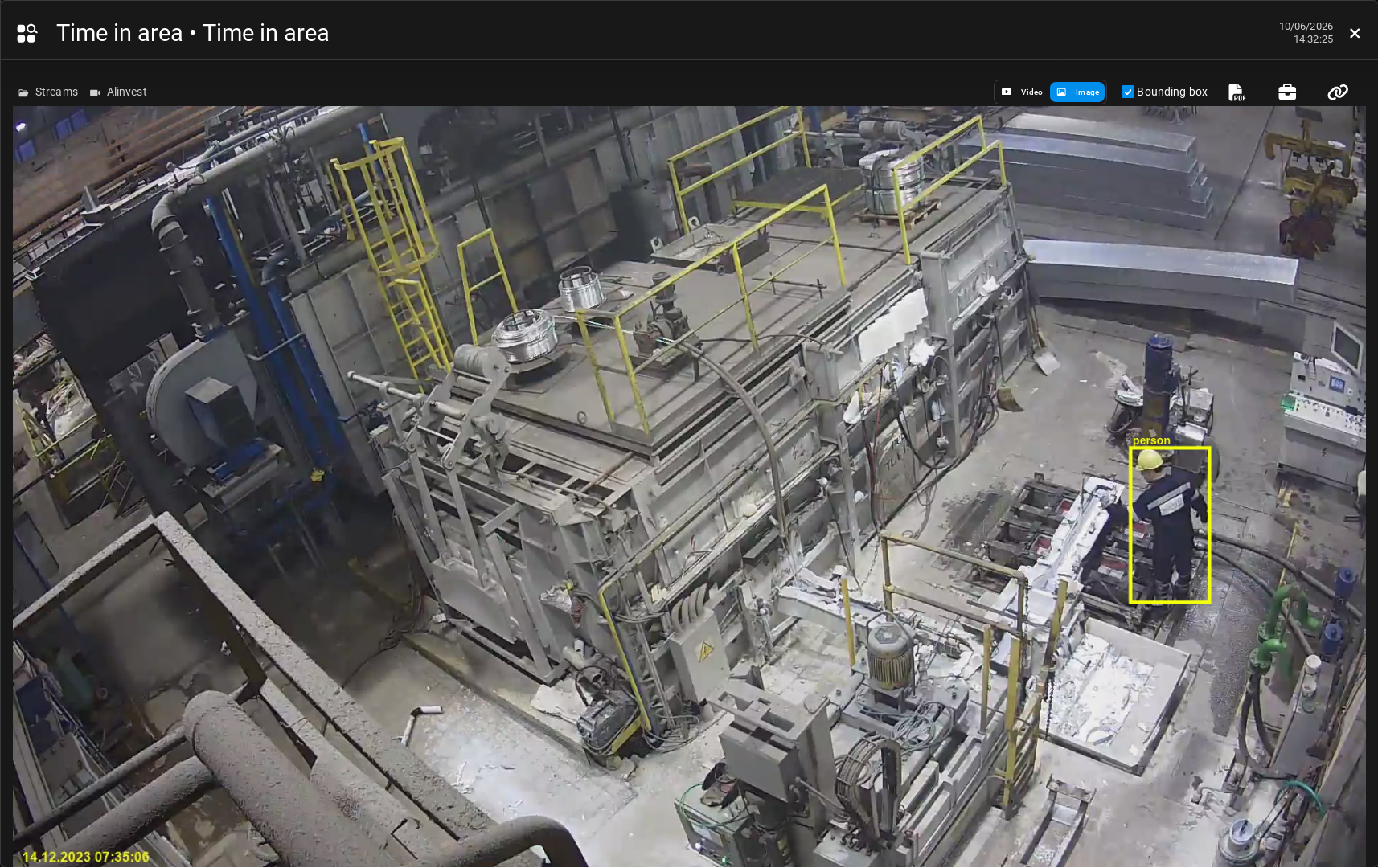
-
Video/Image: Toggles between the video segment and the snapshot image of the detection.
-
Bounding box: Toggles the bounding box of the detected object(s) on the snapshot.
-
Download PDF: Downloads a PDF report of the alarm, including the snapshot and metadata of the detection.
-
Add to Case: Adds the alarm to a Case if Cases are set up in the system.
-
Copy link: Copies the alarm's unique URL to your clipboard, allowing you to share it with others who have access to the Workspace or folder the alarm is in.
Live Rules
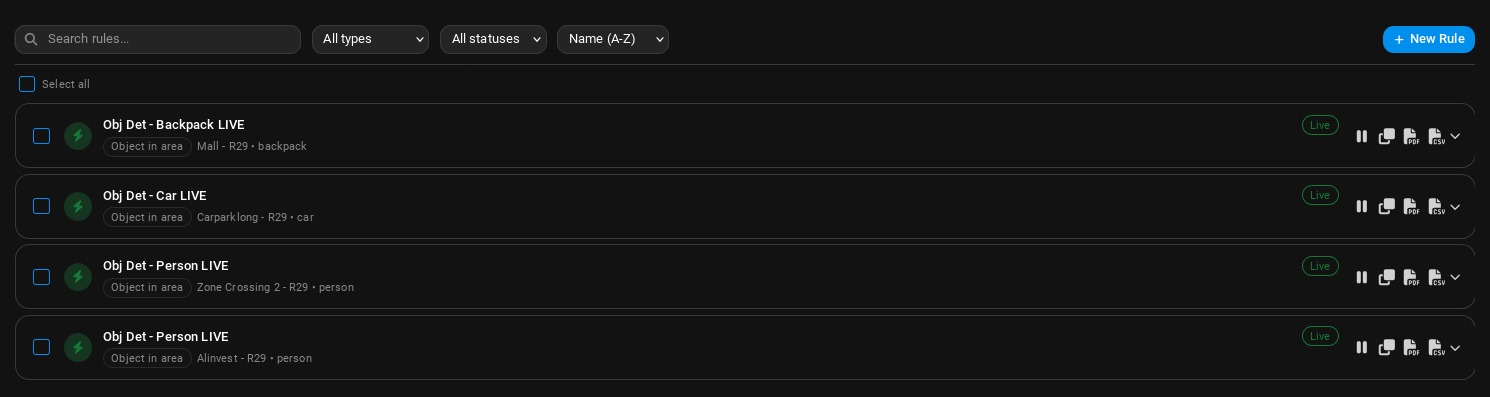
Open the Live Rules tab to set up a Live Rule and start receiving alarms in real time.
Create a Live Rule
-
Click the New Rule button at the top right of the Live Rules screen.
-
Select the Use Case and configure it as described in the Use Case guide.
-
In the last step, configure alarm-related settings:
- Alarm cooldown: The minimum amount of time that must pass between two detections before a new alarm can be triggered.
- Alarm integration: Select an integration target to forward alarms to external systems.
-
Save and start the Rule.
-
Once the Rule is running, detections appear in the Alarms tab. If alarm integration is configured, an alarm is also triggered in the integrated system.
Integration targets
Alarm integrations are configured first in Settings Integration Targets. Available options include Webhook, Milestone XProtect, and Genetec Security Center.
Use Case availability
Some Use Cases are available only as Video Search and cannot run as Live Rules (for example, Traffic counting, Object count statistics, and Dual line counting).
Convert an Advanced Search to a Live Rule
It can be good practice to first run a Use Case on historical footage, then convert it to a Live Rule.
-
Set up and run the Search in Advanced Search.
-
In the Search Results screen, click Convert to Live Rule.
-
Name your Rule, set up alarm integration if needed, and click Convert and start Rule.
-
The Rule now appears in Live Rules and starts producing alarms.
Permissions
Creating and managing Live Rules requires the appropriate permissions (typically the Live rule manager role). See Roles and permissions.