Presence with absence of another object
Detects the presence of one object while another object is absent.
Useful for scenarios where you want to monitor an area for changes in personnel or objects.
Use case examples
- When there is a queue of people waiting for service, and the service provider (e.g., a cashier) is absent.
- When an object (such as a bag or suitcase) is left unattended or unsupervised.
Go to Investigation Advanced search to set up a Search for presence with absence events. Alternatively, go to Live analytics New live analytics rule to set up a real-time detection of presence with absence events with alarm integration.
Select Source
Select the video you want to run the Search on from the left sidebar. The thumbnail image of the chosen video is displayed here.
Time interval Advanced search only
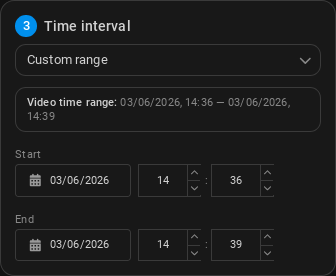
Select a time frame for the analytics to run.
- Entire video: Run the Search on the entire video duration, from the start timestamp to the end timestamp (set during video registration).
- Custom range: You can select a custom start and end date and time to run the Search on. Type the desired date and time or select them by clicking the calendar icon.
Object presence
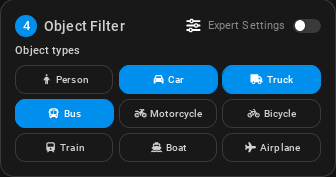
Select one or multiple object types you want to search for.
- Detection zone: Draw a polygon on the video frame to define the area where the objects will be detected. Left-click on the video frame to draw a polygon. Left-click again on the video frame to keep adding points to the polygon; double-click to finish drawing.
Drawing ROI is only supported on videos with a fixed camera angle (i.e. not on moving cameras). PTZ cameras are supported only in fixed position.
Note that currently only one ROI can be drawn.
- Sensitivity (Medium by default): The sensitivity level of the Search. The higher the sensitivity, the more likely it is to detect objects, but it may also result in more false positives.
Ticking the Expert Settings box will open additional configuration options for the Search, such as more object types to choose from.
Moving object
Select one or multiple object types you want to search for.
- Detection zone: Draw a polygon on the video frame to define the area where the objects will be detected. Left-click on the video frame to draw a polygon. Left-click again on the video frame to keep adding points to the polygon; double-click to finish drawing.
Drawing ROI is only supported on videos with a fixed camera angle (i.e. not on moving cameras). PTZ cameras are supported only in fixed position.
Note that currently only one ROI can be drawn.
- Sensitivity (Medium by default): The sensitivity level of the Search. The higher the sensitivity, the more likely it is to detect moving objects, but it may also result in more false positives.
Ticking the Expert Settings box will open additional configuration options for the Search, such as more object types to choose from.
Alarm integration Live analytics only
You can choose to integrate the Search with an alarm system.; whenever a stopped object is detected, an alarm will be triggered in the integrated system.
-
Alarm cooldown: (in seconds, 10 by default) The minimum amount of time that must pass between two detections before an alarm can be triggered again.
-
Alarm integration: Choose from the list of available integrations. The following integrations are available to be created in Integrations:
Results
All done - Clicking Search will immediately start the analysis and opens the Search Results screen.
Live analytics will produce real-time detections , and the results will be displayed in the Alarms screen. If an alarm integration is set up, an alarm will also be triggered in the integrated system.