Traffic counting
Traffic counting counts the number of objects crossing a line.
- Go to Investigation Advanced search to set up a Search for stopped objects.
Traffic counting is currently only available as a Search, not as a Live Rule.
Select Source
Select the video you want to run the Search on from the left sidebar. The thumbnail image of the chosen video is displayed here.
Time interval Advanced search only
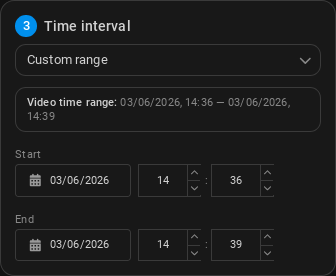
Select a time frame for the analytics to run.
- Entire video: Run the Search on the entire video duration, from the start timestamp to the end timestamp (set during video registration).
- Custom range: You can select a custom start and end date and time to run the Search on. Type the desired date and time or select them by clicking the calendar icon.
Object Filter
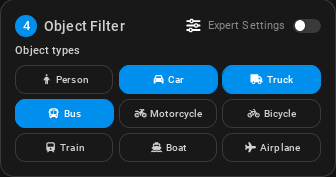
Select one or multiple object types you want to search for.
- Sensitivity (Medium by default): The sensitivity level of the Search. The higher the sensitivity, the more likely it is to detect line crossings, but it may also result in more false positives.
Ticking the Expert Settings box will open additional configuration options for the Search, such as more object types to choose from.
Algorithm
-
Line definition: Draw a line on the canvas to define the area where the objects will be detected. The line should be drawn perpendicular to the direction of traffic flow. Left-click on the video frame to draw the line.
-
Maximum time between line crossings (in seconds, 5 by default): The maximum amount of time that can pass between crossing the first and second line for the same object to be counted. Adjusting this setting can help ensure that only objects that cross both lines within a reasonable time frame are counted.
Expert Settings
-
Ignore repeat crossings for same object (in seconds, 1 by default): The minimum amount of time that must pass before the same object crossing the lines again will be counted as a new crossing. Adjusting this setting can help prevent multiple counts for the same object if it crosses the lines multiple times in a short period.
-
Use bottom reference point (on by default): By default, the Search uses the bottom center of the detected bounding box as a reference point to determine whether an object has crossed the line. Toggling this option will use the middle center of the bounding box instead.
Results
All done - Clicking Search will immediately start the analysis and opens the Search Results screen.
Live analytics will produce real-time detections , and the results will be displayed in the Alarms screen. If an alarm integration is set up, an alarm will also be triggered in the integrated system.