Free text with similarity threshold
Free Text with similarity threshold is a versatile tool that allows you to search for objects in videos based on text input (currently in English). The query uses a similarity threshold to filter results, ensuring that only the most relevant matches are returned. This is particularly useful for finding objects in multiple videos.
- Do not use negation in the query text; i.e. "person not sitting" will not produce correct results.
- Combine multiple attributes in a single query to get more accurate results.
- Make sure to pick the object type corresponding to your query text to get the desired results - if your query is e.g. "stationary car next to a bicycle", use the Car and Bicycle object types.
Go to Investigation Advanced search to set up a Search for your prompt. Alternatively, go to Live analytics New live analytics rule to set up a real-time detection of objects with alarm integration.
Select Source
Select the video you want to run the Search on from the left sidebar. The thumbnail image of the chosen video is displayed here.
Time interval Advanced search only
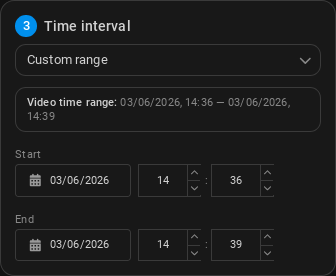
Select a time frame for the analytics to run.
- Entire video: Run the Search on the entire video duration, from the start timestamp to the end timestamp (set during video registration).
- Custom range: You can select a custom start and end date and time to run the Search on. Type the desired date and time or select them by clicking the calendar icon.
Object Filter
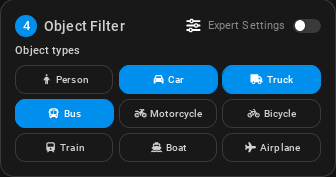
Select one or multiple object types you want to search for.
- Full image search: The query will search for the text in the entire image, not limited to specific object types. This may be useful for prompts that do not correspond to specific object types.
Expert Settings
Ticking the Expert Settings box will open additional configuration options for the Search, such as more object types to choose from. Additional parameters:
-
Sensitivity (Medium by default): The sensitivity level of the Search. The higher the sensitivity, the more likely it is to detect objects, but it may also result in more false positives.
-
Minimum height (in pixels, 80 by default) : The minimum height of the bounding boxes of the detected objects. Adjusting these values can help filter out irrelevant results based on the size of the detected objects.
-
Maximum height (in pixels, 10000 by default) : The maximum height of the bounding boxes of the detected objects. Adjusting these values can help filter out irrelevant results based on the size of the detected objects.
Search prompt
-
Free text search: Enter the text you want to search for in the video. The query will return results that match the text input based on the selected object types and the similarity threshold.
-
Similarity threshold (0.12 by default): The minimum similarity score required for a result to be included in the search results. The similarity score is a measure of how closely the detected objects match the text input. Adjusting this threshold allows you to filter results based on their relevance to the search query.
Finding the right threshold
- Set up an Advanced search with the default threshold value.
- Find the lowest confidence score among the results that you consider relevant. Then find the highest confidence score among the results that you consider irrelevant.
- Change the similarity threshold to a value between these two scores to filter out irrelevant results while keeping relevant ones.
- If you are satisfied with the result, you can now Save the search for future use or Convert it to a Live Rule for real-time detection.
Note that increasing the threshold will reduce false positives but may also exclude some true positives. Decreasing the threshold will include more results but may also increase false positives.
-
Cooldown (in seconds, 10 by default): The minimum amount of time that must pass between two detections.
Alarm integration Live analytics only
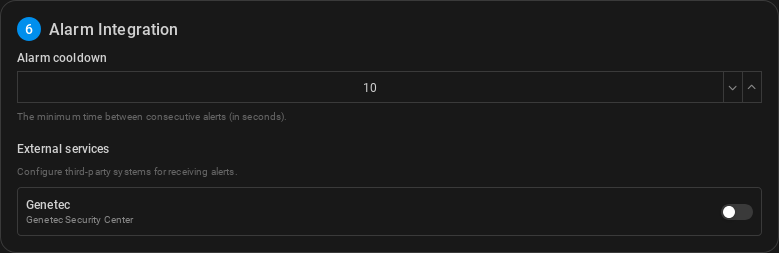
You can choose to integrate the Search with an alarm system.; whenever a stopped object is detected, an alarm will be triggered in the integrated system.
-
Alarm cooldown: (in seconds, 10 by default) The minimum amount of time that must pass between two detections before an alarm can be triggered again.
-
Alarm integration: Choose from the list of available integrations. The following integrations are available to be created in Integrations:
Results
All done - Clicking Search will immediately start the analysis and opens the Search Results screen.
Live analytics will produce real-time detections , and the results will be displayed in the Alarms screen. If an alarm integration is set up, an alarm will also be triggered in the integrated system.